

1. Download and install
Download Workser Code for Macs with Apple silicon from workser.ai/code. The desktop app is free to download. Windows is on the waitlist.2. Sign in
Sign in with the same account you use for Workser on the web — your organization, connections, and credits carry over.3. Grant permissions for computer use
If you plan to use the computer-use agent, macOS will prompt for Screen Recording and Accessibility permissions the first time you enable a capability that needs them (e.g. taking a screenshot, or controlling the keyboard). You can review and revoke these at any time in your OS’s privacy settings.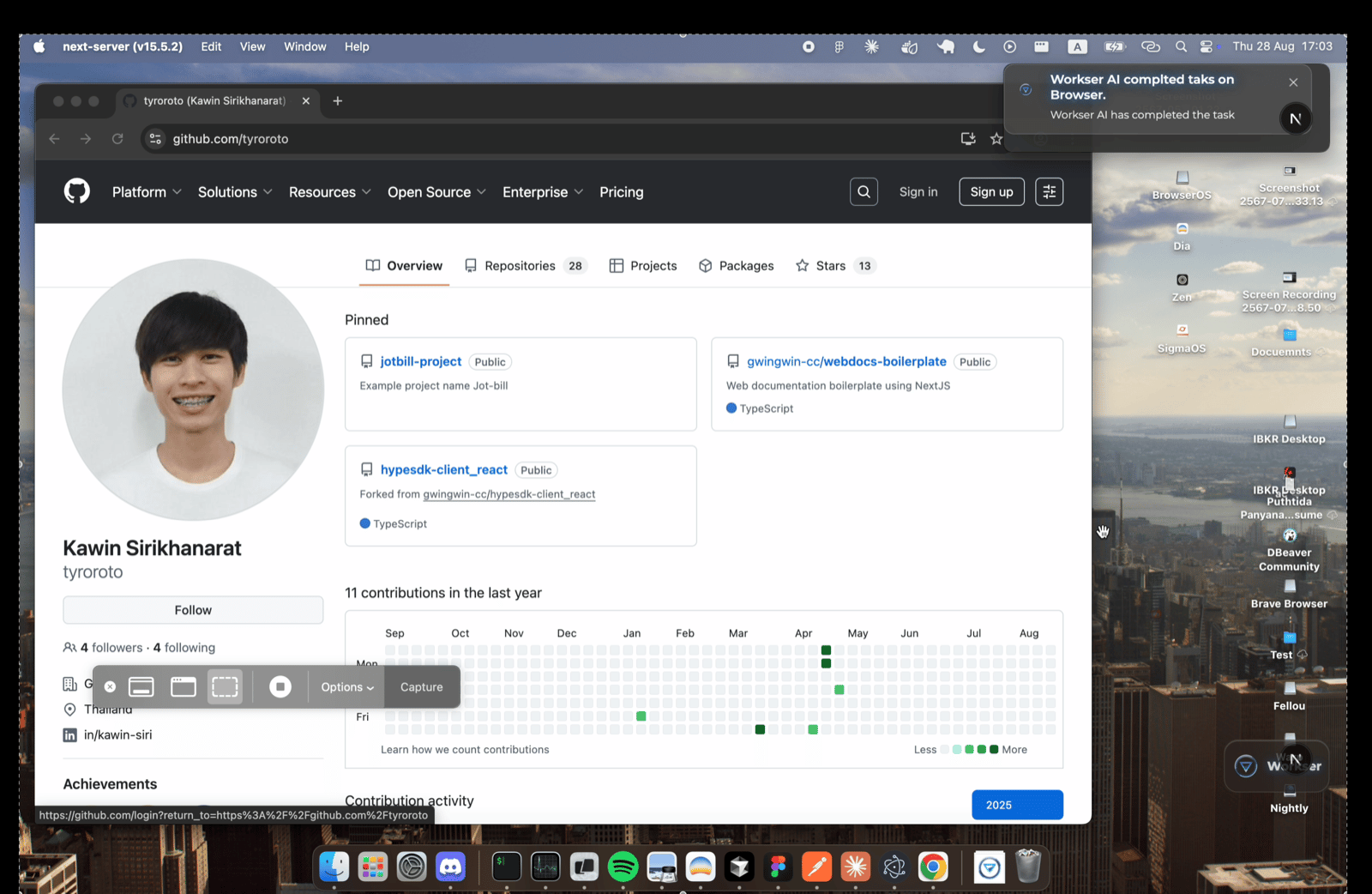
Workser Desktop does not request webcam or microphone access unless you explicitly use a voice-interaction feature, and sensitive folders are blocked from agent access by default.
4. Set up the browser extension (optional)
Install the Workser Chrome extension if you want browser automation in addition to native computer control. It only communicates with your locally-running Workser Desktop app.5. Connect Workser Code (optional)
Open Workser Code and choose Claude Code, Codex, Cursor Agent, GitHub Copilot or OpenCode, or select the built-in Workser Code agent. The connection flow checks installation and authentication and guides you through the provider’s sign-in when needed. The built-in agent uses Workser credits for paid models. See Connect your agent.Next steps
Connect your agent
Bring Claude Code, Codex or another coding agent into Workser Code.
Workser Code deep dive
Plan, build, test and maintain software with your AI tech team.