

WhatsApp does not show that ID to this token. Check the ID, and that the system user has this WhatsApp account assigned.It means the access key you pasted works, but Meta says that key is not allowed to see your WhatsApp account. The fix is to give the key’s system user your WhatsApp account, then make a new key. The numbers you typed are usually fine.
Not sure how to make the access key at all? Start with Get your WhatsApp access key from Meta.
1
Open your WhatsApp account in Meta
In Meta Business Settings, open Accounts → WhatsApp accounts and click your number. Your test number looks like 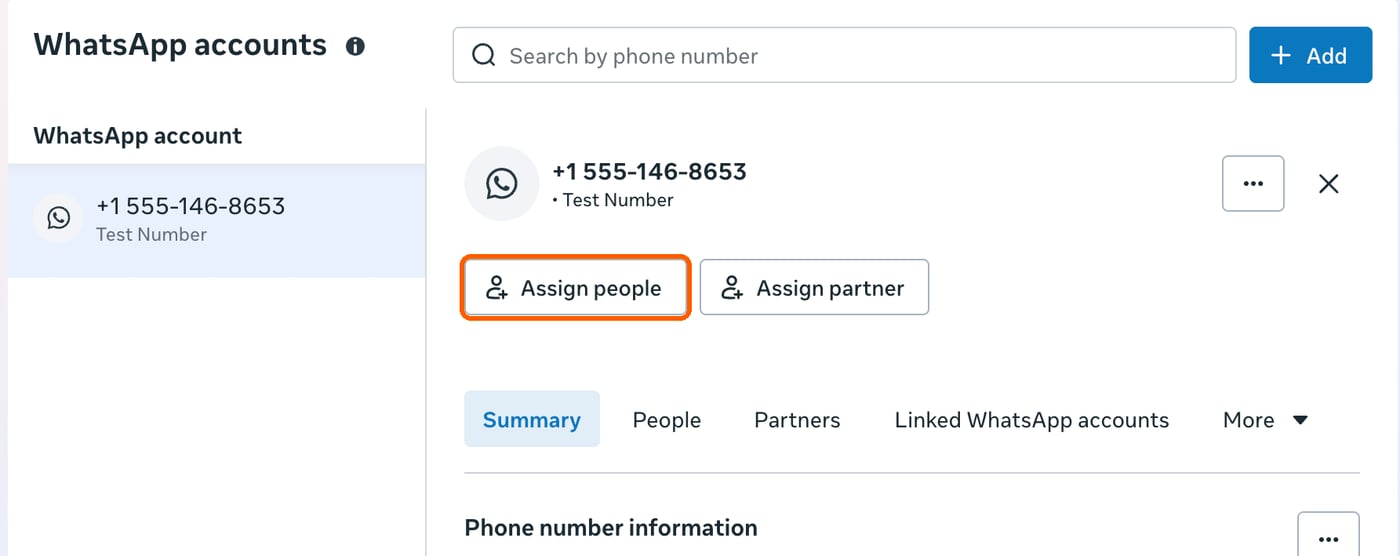
+1 555-… and says Test Number. If your account is not in this list, it belongs to a different business portfolio or to your personal developer account, and the system user cannot reach it from here.2
Pick the system user
The list holds the people in your business and your system users. Tick the system user you made for Workser. It is marked (system user).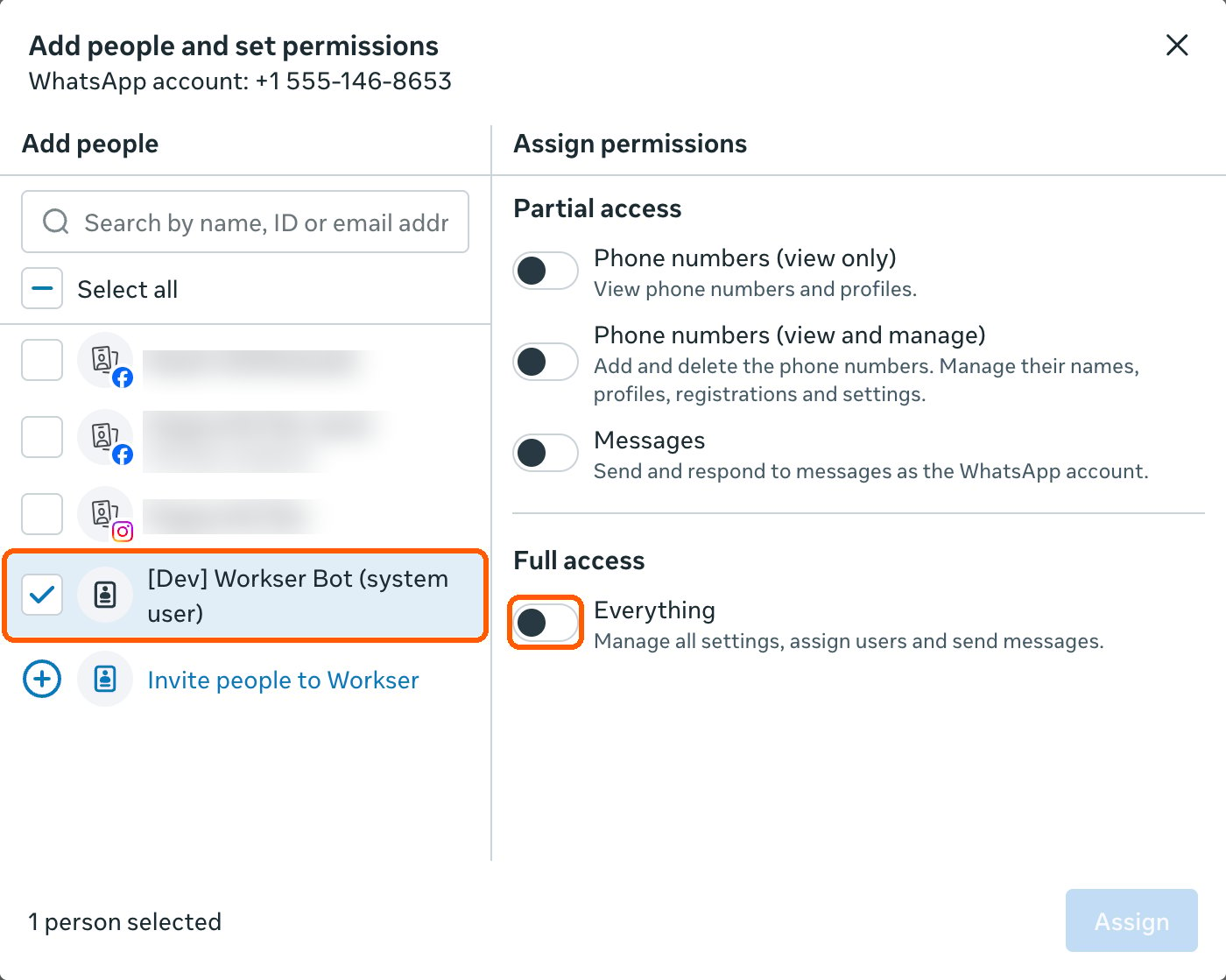
3
Give it full access
Under Full access, turn on Everything, then press Assign. Workser needs to send messages for this account, and Meta only allows that with this permission.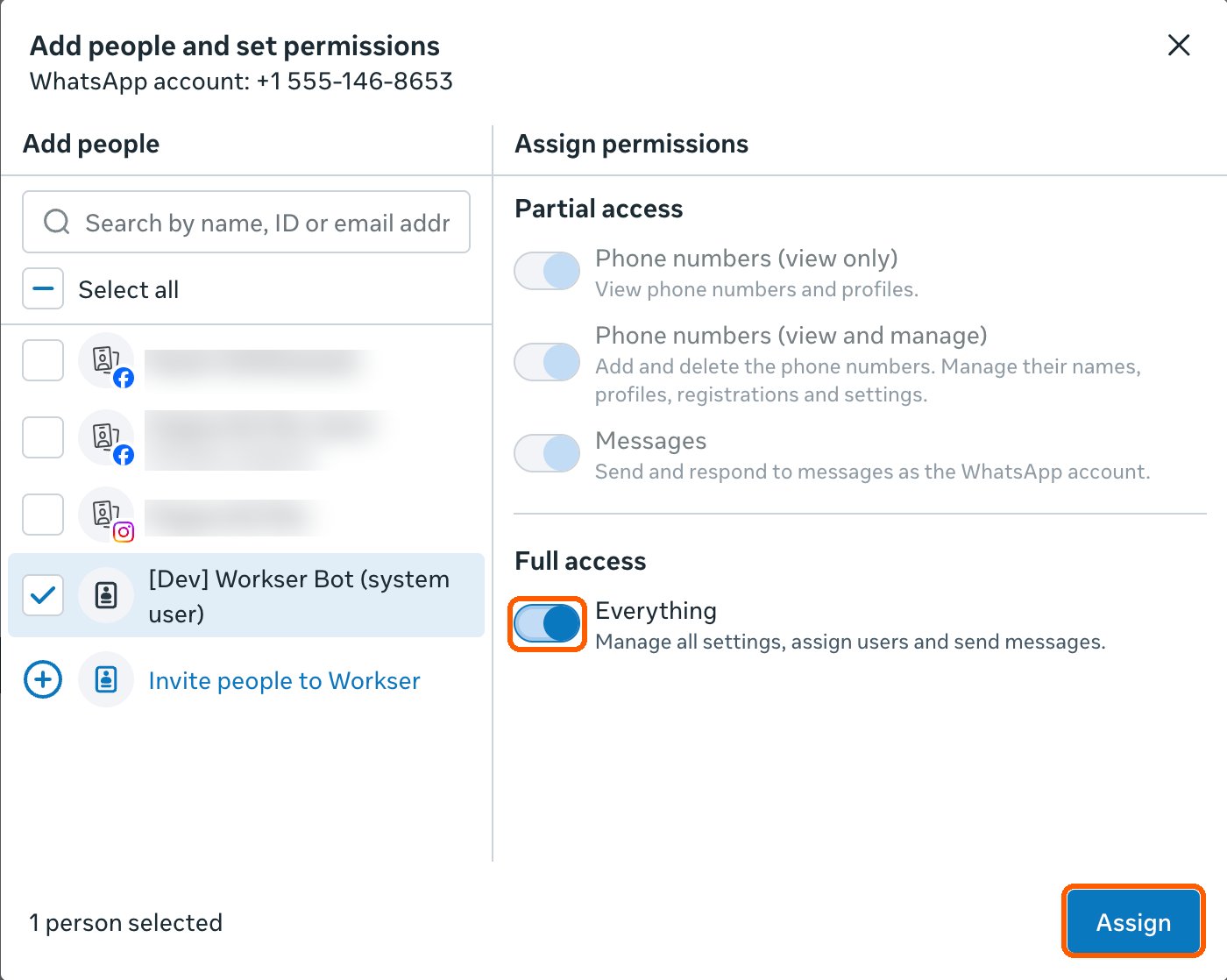
4
Check it, then make a new key
Go to Users → System users, click the system user, and look at Assigned assets. You should see your app and your WhatsApp account, both with Full access.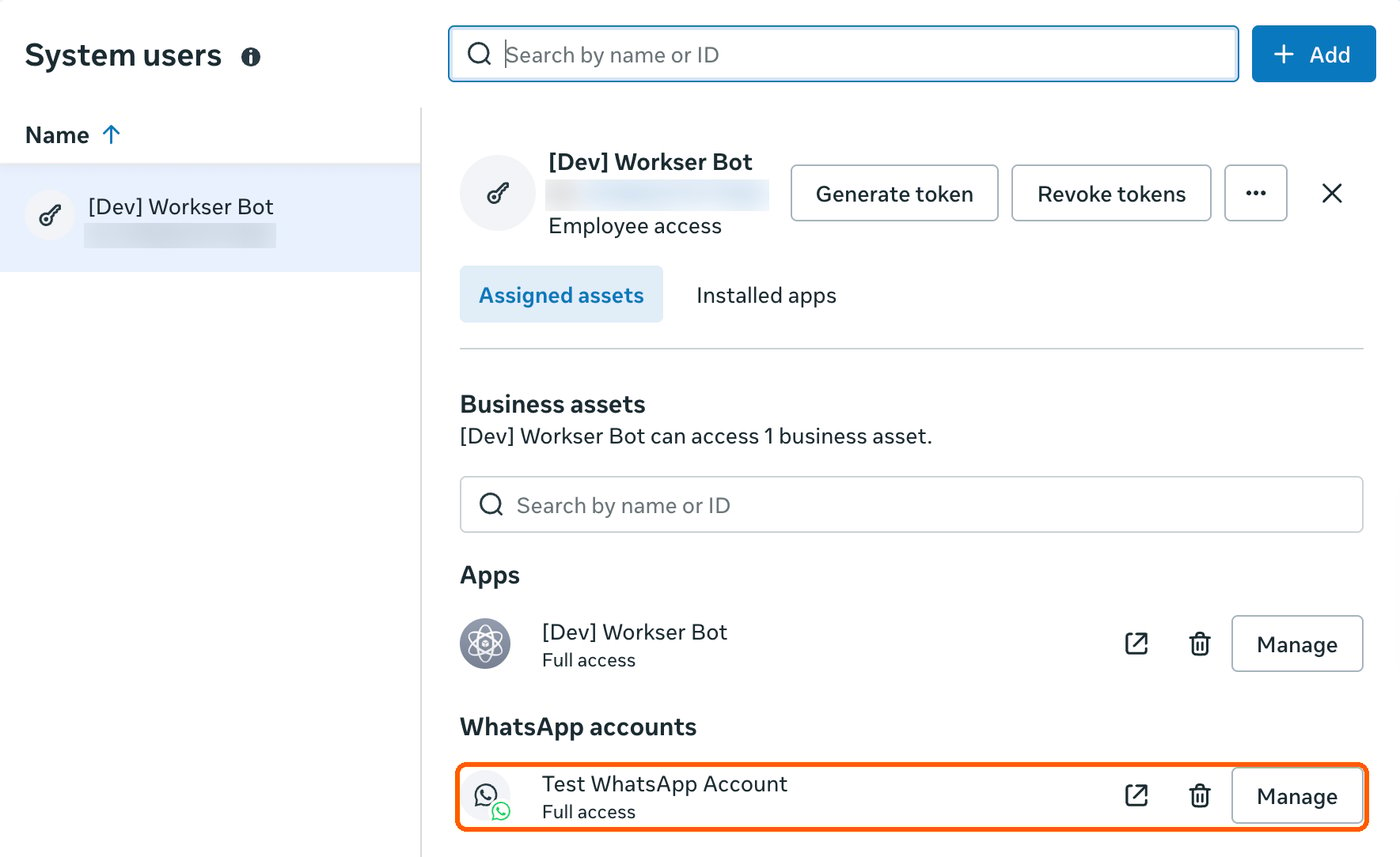
Still the same message?
- Check the WhatsApp number ID against Meta’s WhatsApp → API Setup page. For the WhatsApp business account ID, do not use the Messaging account ID on that page. Find the real one in the address bar.
- Make sure the new key was made for the same app whose App ID you pasted into Workser.
- Make sure you pasted the new key, not the old one.