

Find it in 4 steps
1
Open your system user
In Meta Business Settings, go to Users → System users and click the system user you made for Workser.
2
Find your WhatsApp account
Under Assigned assets, look for WhatsApp accounts and press the small arrow icon at the right of your account (the one before the bin).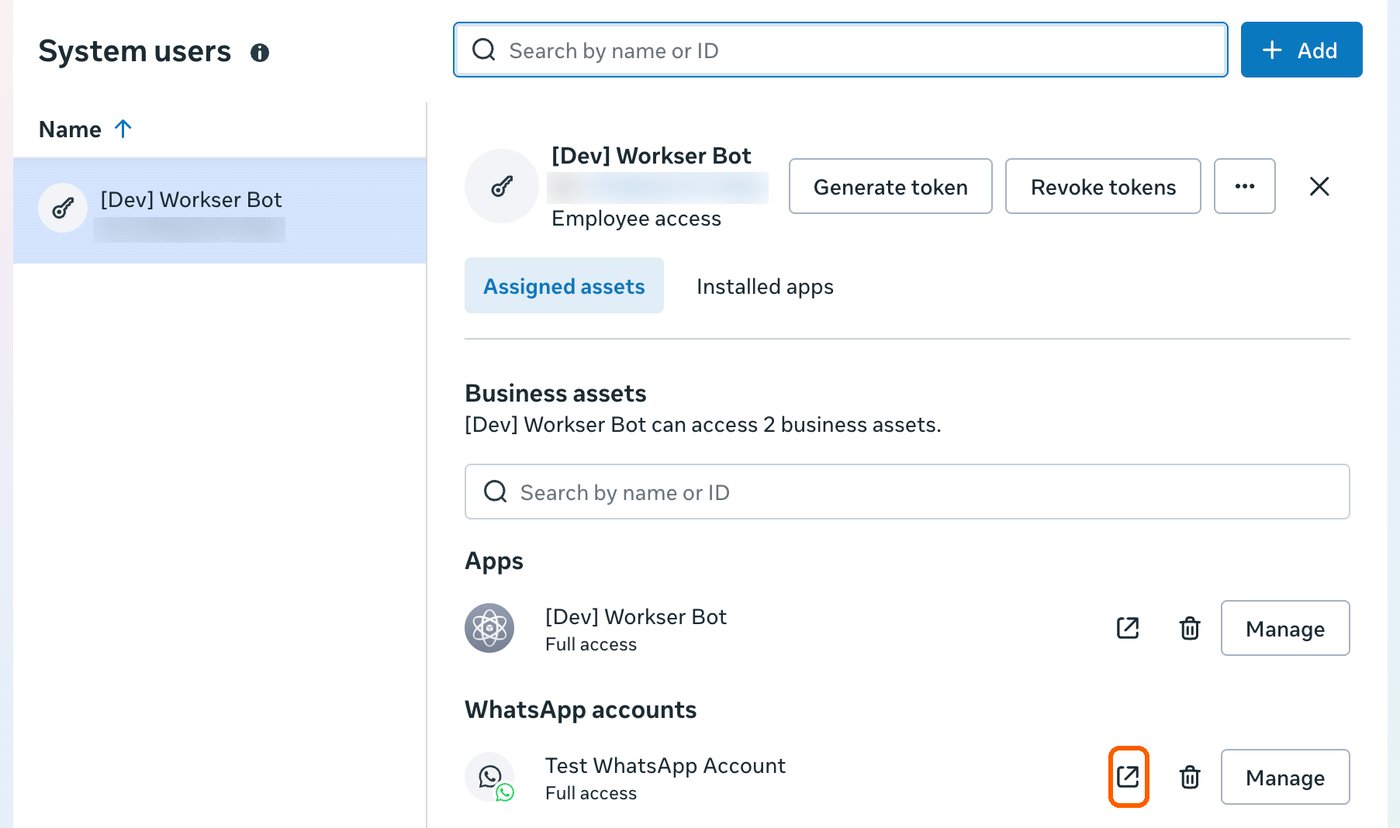
3
Read the number in the address bar
Your account opens in a new tab. Look at the address at the top of the browser. It looks like this:The long number after
selected_asset_id= is your WhatsApp business account ID. In this example it is 2433316544083047. The page also says selected_asset_type=whatsapp-business-account, which confirms it is the right kind of ID.4
Paste it into Workser
Copy that number into WhatsApp business account ID in the Connect form.
Why API Setup shows a different number
Meta keeps two records for the same number: a WhatsApp account and a linked Messaging account. They have different IDs. API Setup shows the Messaging account ID, and Workser needs the ID of the WhatsApp account. You can see the two records side by side. In Business Settings, open Accounts → WhatsApp accounts, click your number, then open More. The linked Messaging account is listed there. It is a separate record, so its ID is not the one Workser needs.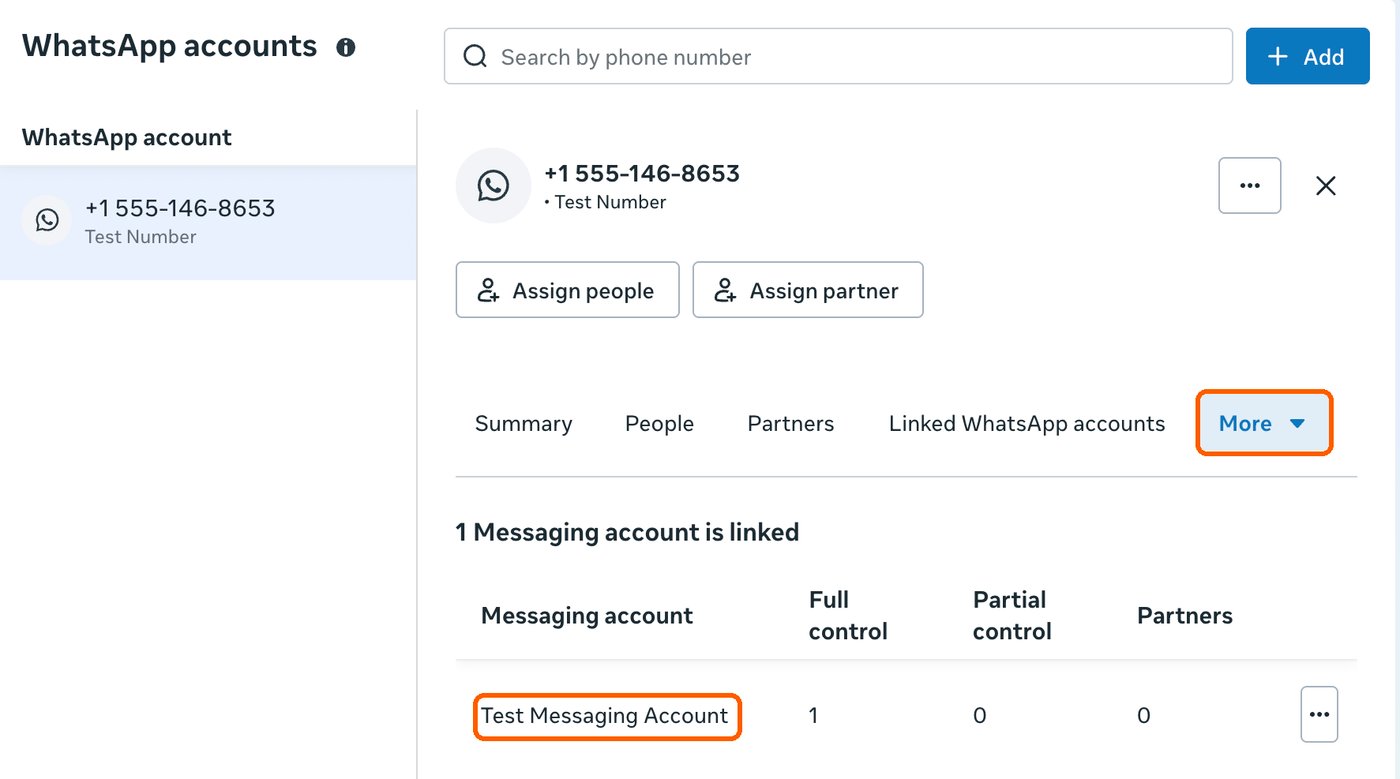
Find the phone number ID in WhatsApp Manager
If you cannot find the Phone Number ID on API Setup, WhatsApp Manager shows it right under your number. Open WhatsApp Manager from your Meta business tools, then Account tools → Phone numbers, and click your number. The Phone number ID is the line under its name.
Which ID goes where
The system user ID (the number under the system user’s name) and the Messaging account ID are not used in Workser.