

Just trying it out? On your app’s WhatsApp → API Setup page, Meta shows a temporary access token that works for 24 hours. You can paste that into Workser to test. For a number that keeps answering customers, make the permanent key below.
1
Create a system user
In Business Settings, open Users → System users and press Add. Name it anything you like, set the role to Employee, and press Create system user.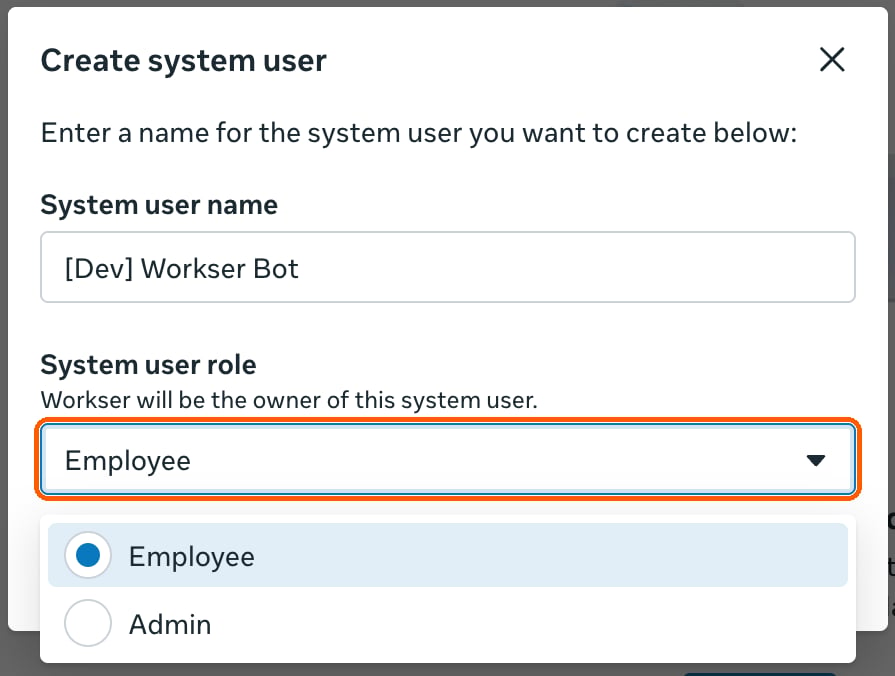
2
Give it your app
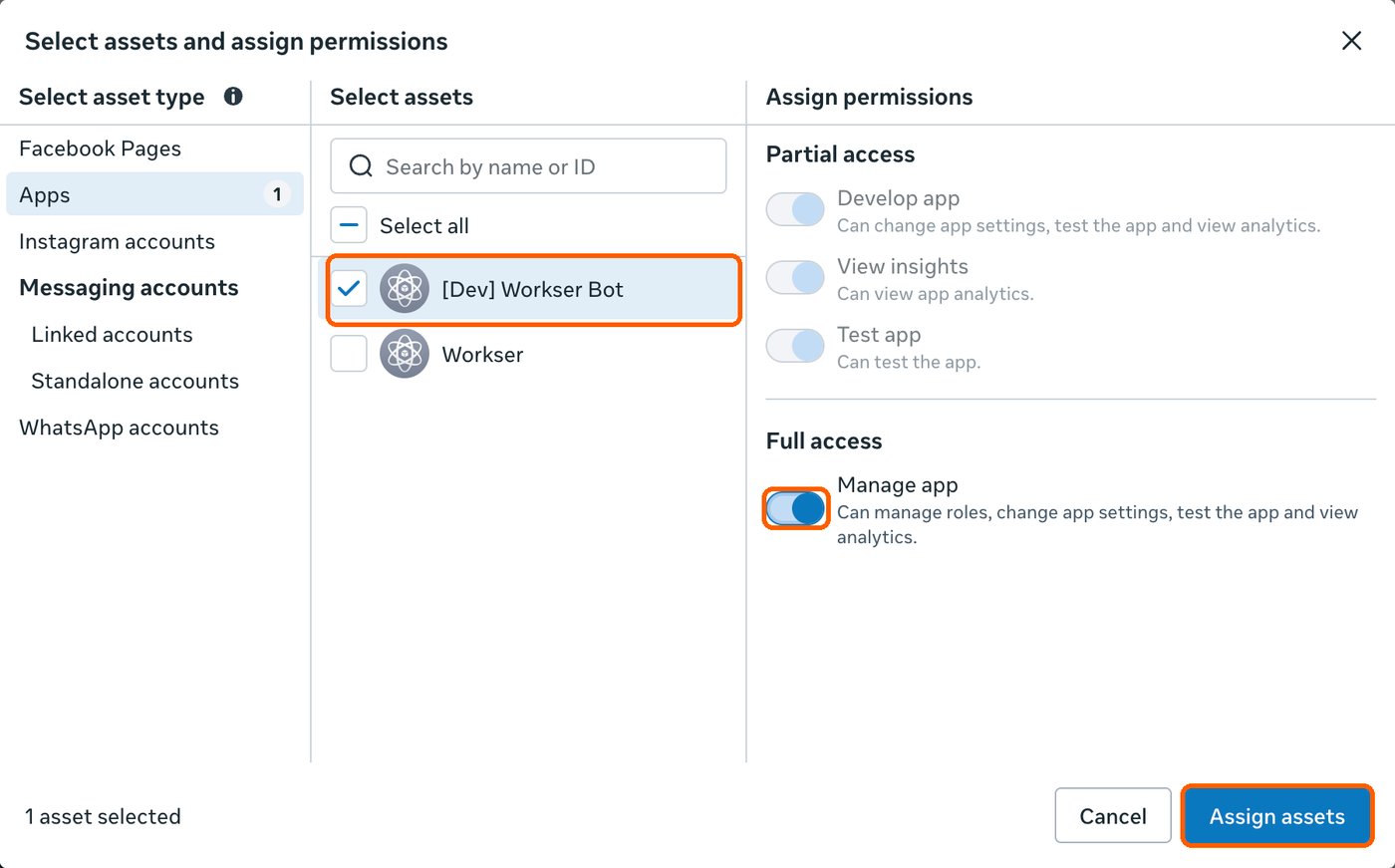
Click the system user you just made, then press Assign assets. Open the Apps tab, tick your app, turn on Manage app, and press Assign assets.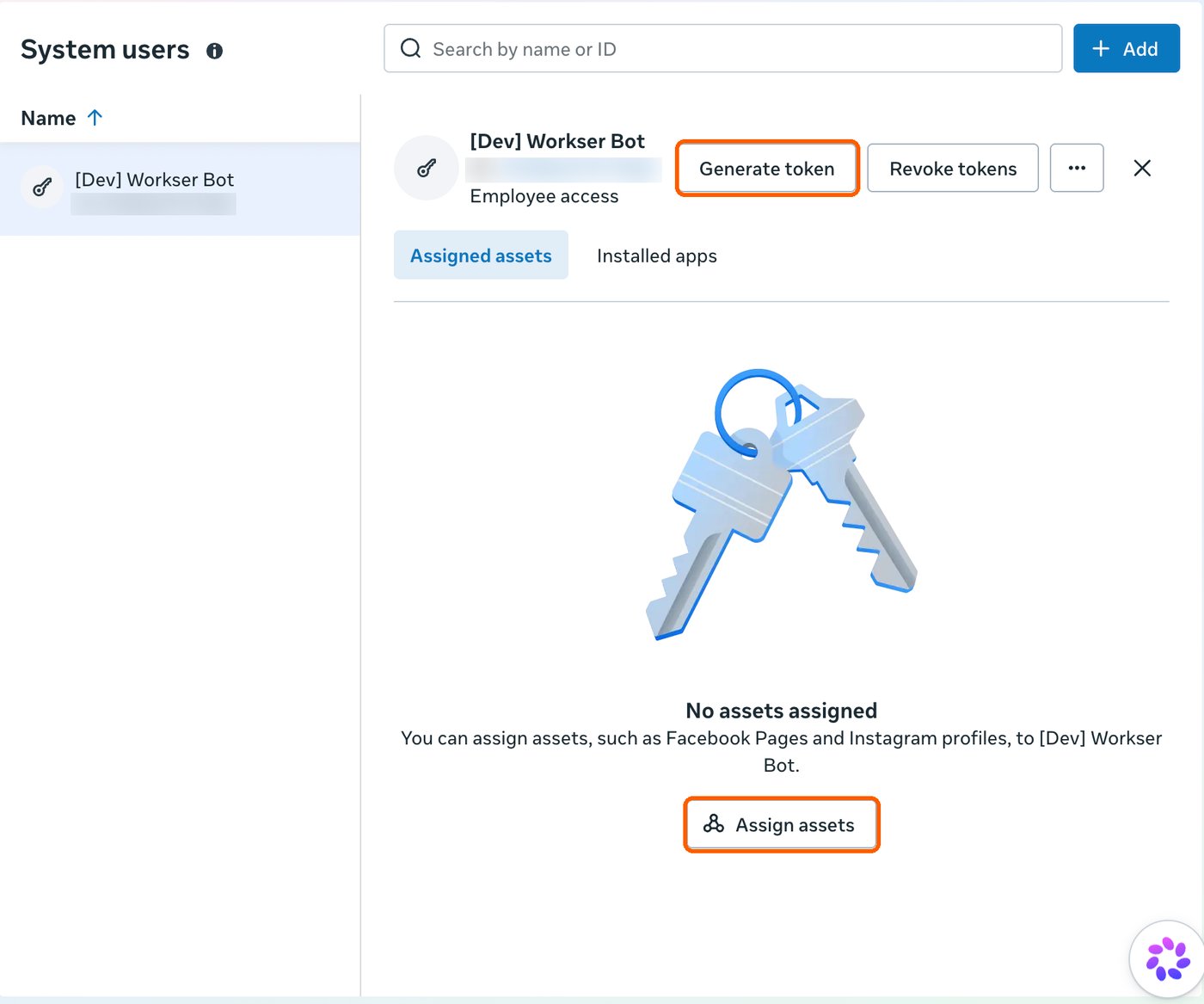
3
Give it your WhatsApp account
Press Assign assets again. This time open the WhatsApp accounts tab (not “Messaging accounts”), tick your WhatsApp account, turn on full control, and press Assign assets. If that tab shows nothing to tick, assign it from the other side: give the system user your WhatsApp account, with screenshots.Workser checks this when you connect. A key that is not allowed to message for your WhatsApp account is refused with “WhatsApp does not show that ID to this token”.
4
Press Generate token and pick your app
On the system user, press Generate token. Choose your app in the list and press Next.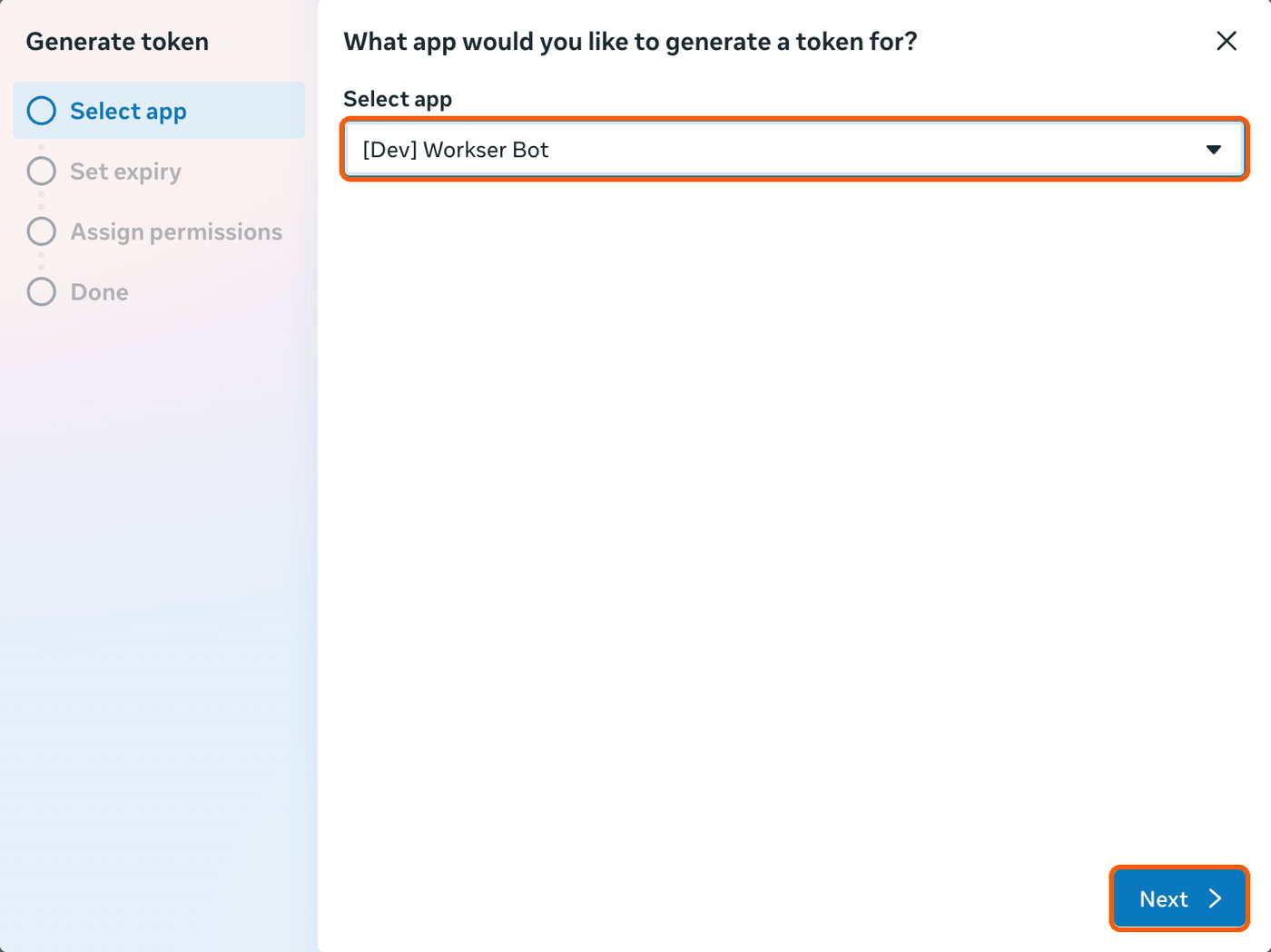
5
Choose when it expires
Pick Never, then Next.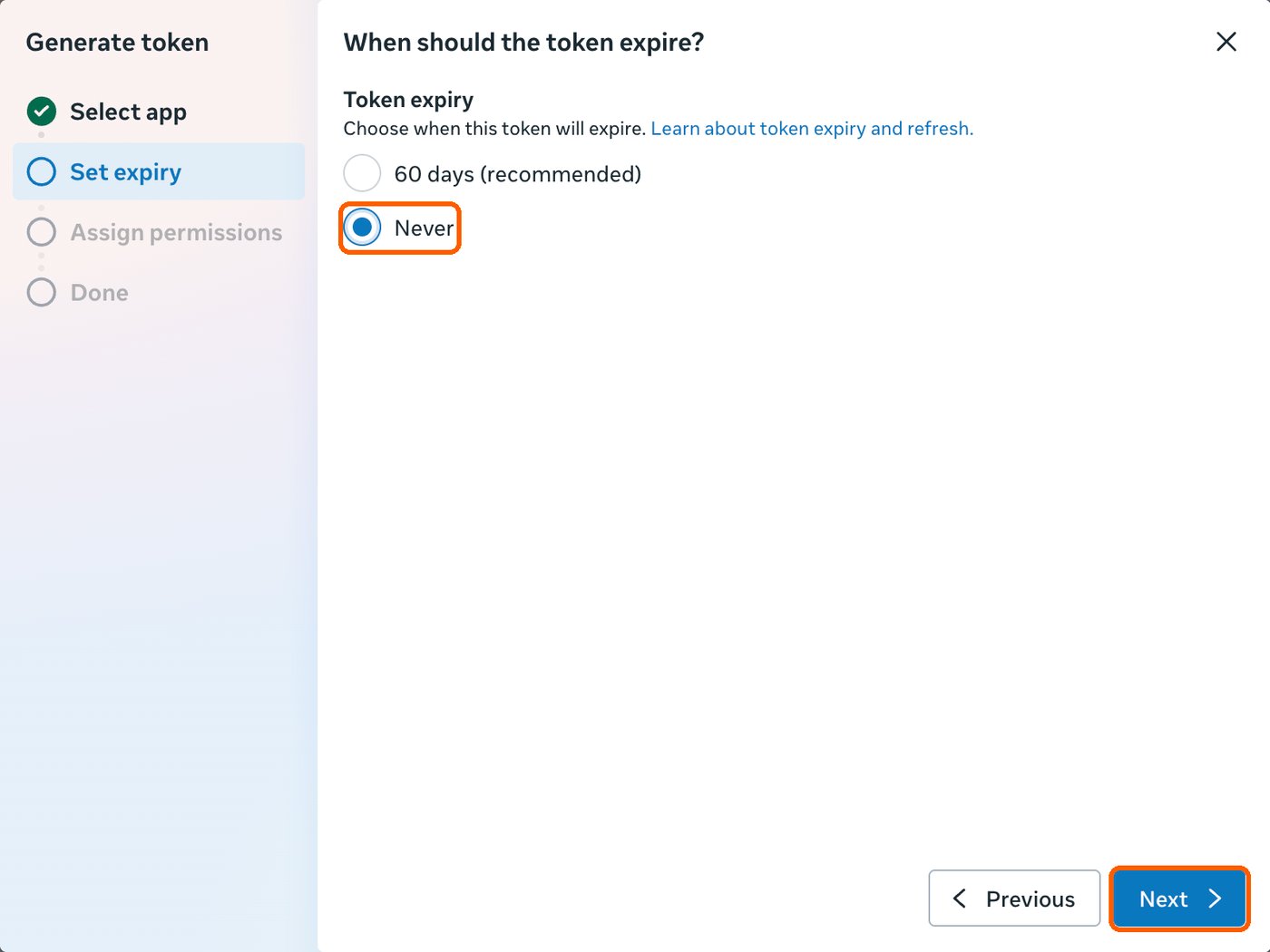
6
Tick the two WhatsApp permissions
Tick whatsapp_business_messaging and whatsapp_business_management, then press Continue. The extra 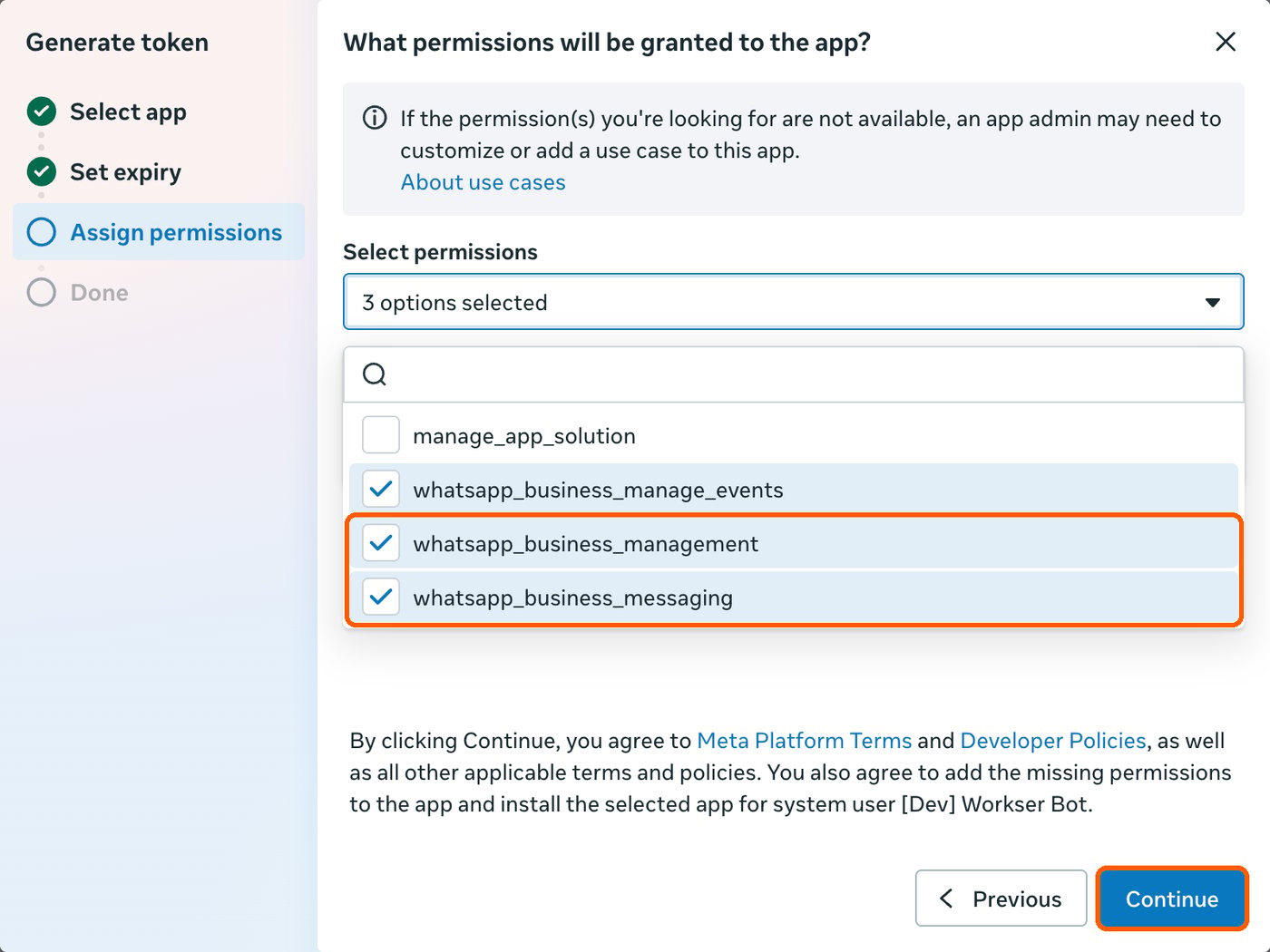
whatsapp_business_manage_events is optional.7
Copy the key into Workser
Press Copy. Meta shows the key only once, so paste it into the Access key field in Workser right away, together with your app ID, app secret, number ID and business account ID (where to find each ID), and press Connect.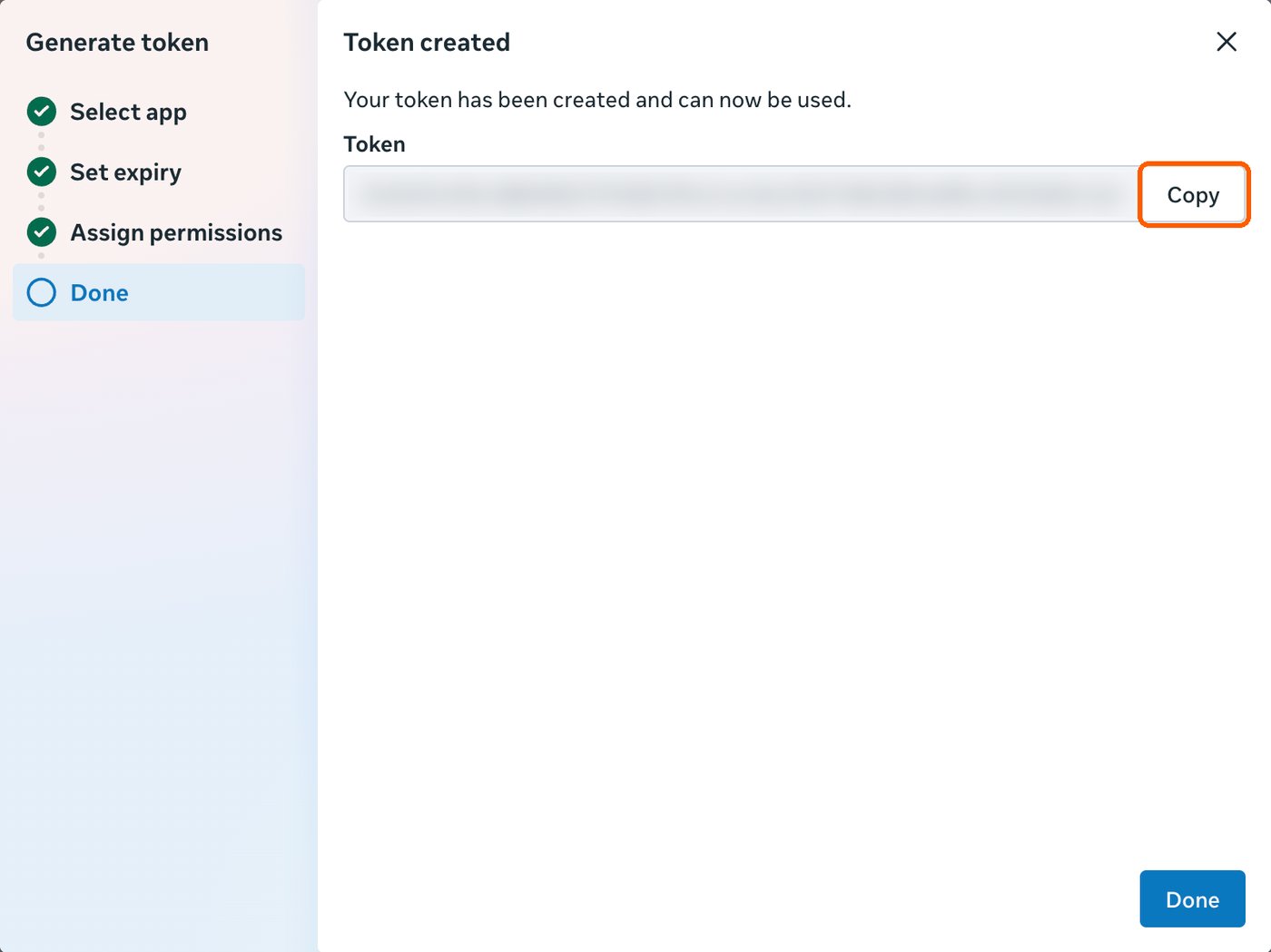
When it works
Workser shows Connected with your number’s name. This is what it looks like for Meta’s free test number.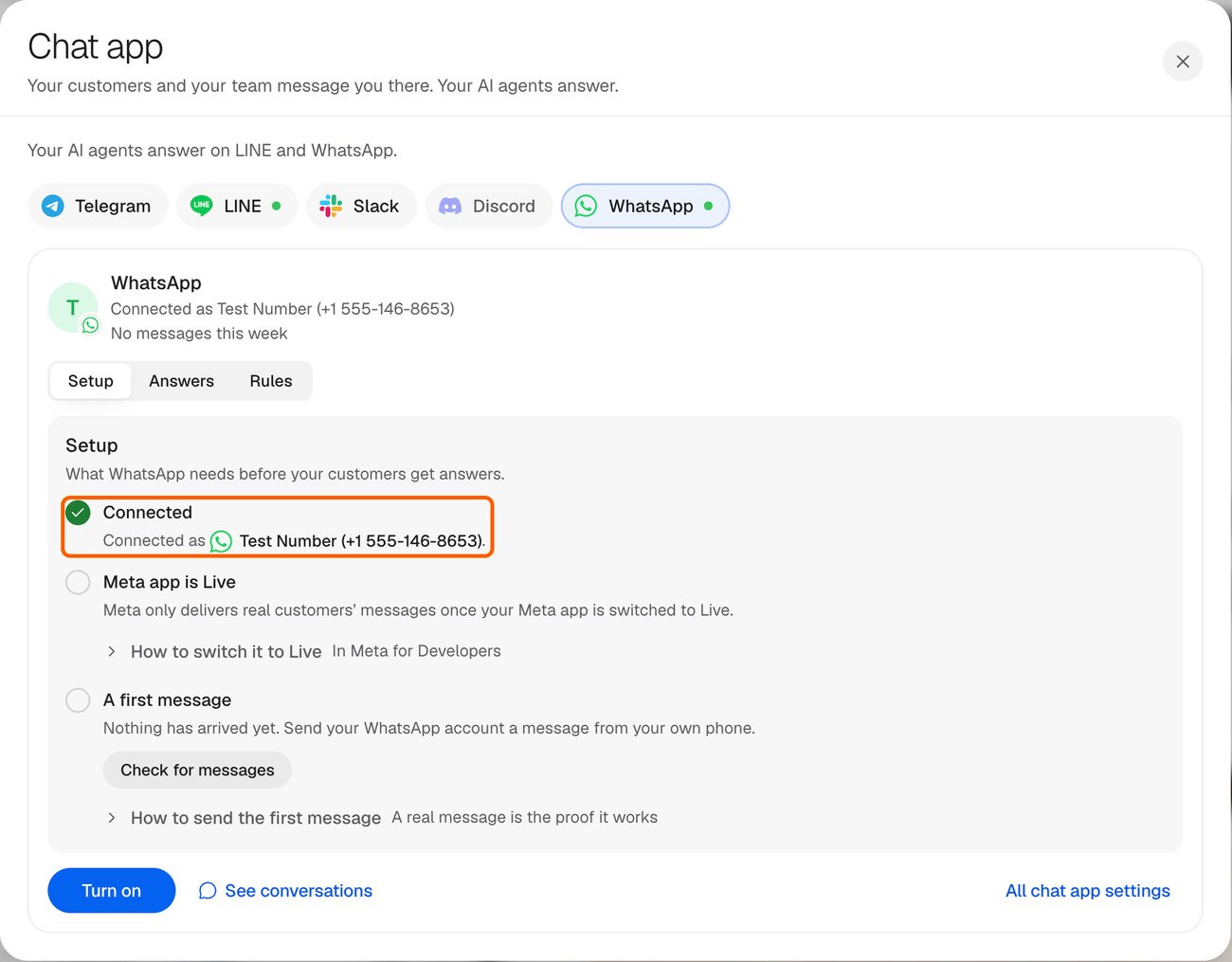
If something goes wrong
Meta says “No permissions available”
Meta says “No permissions available”
The system user has no role on your app yet. Close the box, go back to step 2, give the system user your app with Manage app turned on, then press Generate token again.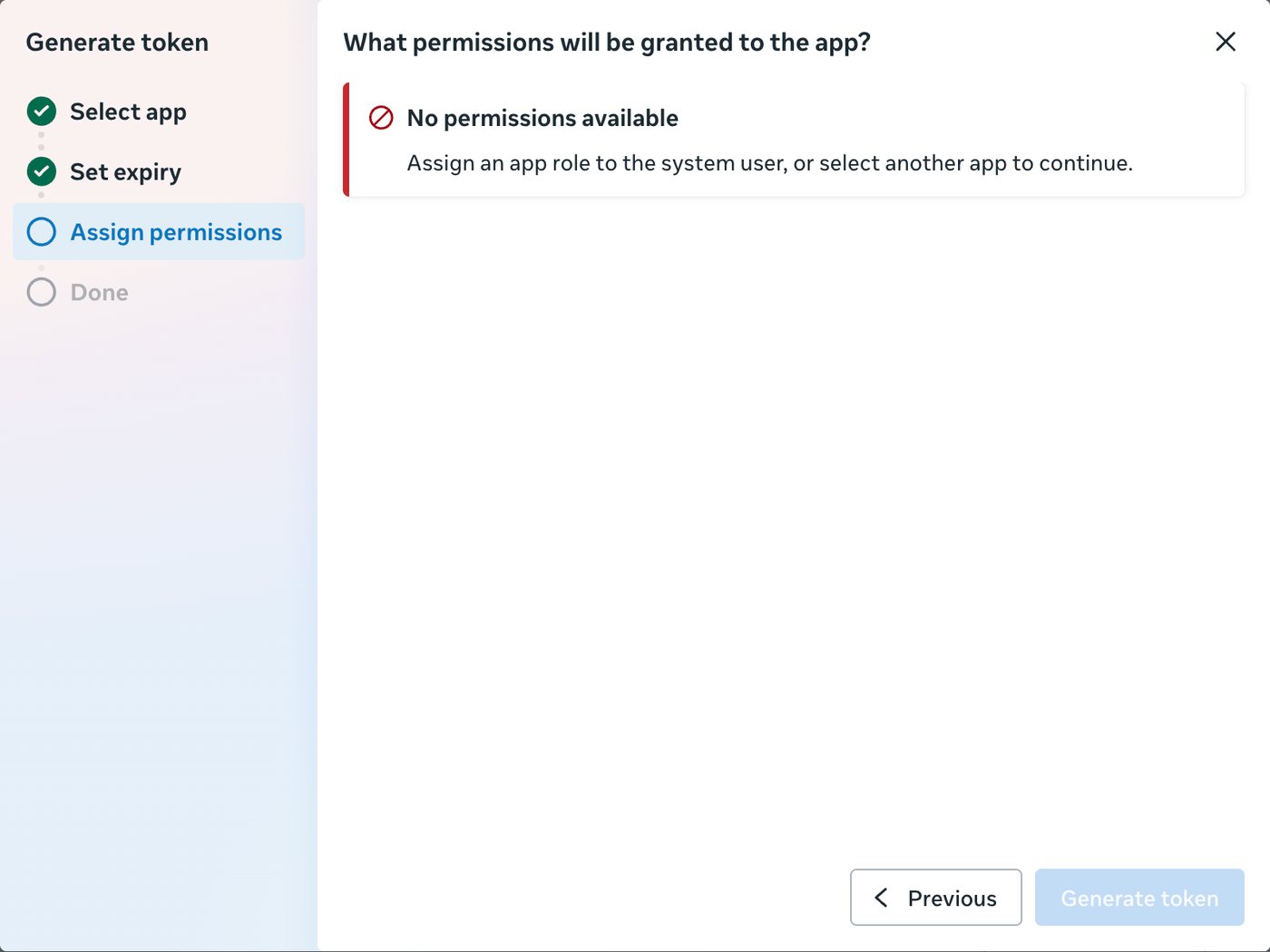
My app is not in the Apps list
My app is not in the Apps list
The app still belongs to your personal developer account. In Business Settings open Accounts → Apps → Add → Connect an app ID, enter your app ID, and approve it. Then repeat step 2.
Workser says the key is for a different app
Workser says the key is for a different app
The key must be made for the same app whose ID you pasted. Generate it again and choose that app in step 4.
Workser says “WhatsApp does not show that ID to this token”
Workser says “WhatsApp does not show that ID to this token”
The system user does not have your WhatsApp account yet. Follow Fix: WhatsApp does not show that ID to this token, then make a new key.
Workser says the key is missing a permission or cannot message for the account
Workser says the key is missing a permission or cannot message for the account
Check step 3 (the WhatsApp account with full control) and step 6 (both WhatsApp permissions ticked). Then make a new key and connect again.